> ## Documentation Index
> Fetch the complete documentation index at: https://docs.tastelabs.com/llms.txt
> Use this file to discover all available pages before exploring further.
# MCP server
> Connect the Taste Engine MCP server to your AI coding agent
The Taste Engine [MCP](https://modelcontextprotocol.io) server exposes brand extraction, brand search, and brand adherence as tools your AI client can call. Give it a URL and it returns a structured brand system (colors, typography, layout, components) plus the captured HTML, CSS, and screenshots. The output is detailed enough to replicate a site, build new on-brand pages, or compare two brands. Give it a description of a look instead and it finds brands that match. Give it two URLs and it scores how well one page follows the other's brand.
It is a thin gateway over the [HTTP API](/api-reference/introduction): it forwards your API key and relays requests, and the API stays the single authority for auth, credits, and validation. Anything you can do over the API, your agent can do through the MCP server.
## Server endpoint
Connect over streamable HTTP at:
```
https://mcp.tastelabs.com/mcp
```
## Authentication
There are two ways to authenticate, both on the same endpoint. The connection steps differ, so pick the one that fits your client:
* **OAuth sign-in (recommended)**: connect with the server URL alone and authenticate in your browser. No key to manage, and it is the simplest way to connect an interactive client.
* **API key**: send your `taste_` key as a Bearer token. Works in any MCP client and is the right choice for headless or CI use, where no browser is available.
## Connect with OAuth sign-in
The recommended way to connect. The server is an OAuth 2.1 resource server, so a client that supports MCP OAuth connects with just the URL: it discovers the sign-in flow, opens a browser for you to authenticate, and obtains a token automatically. There is no key to paste.
Pick your client. In every case you add the server by its URL, with no key, and finish sign-in in the browser when prompted.
Add the server by URL, with no header:
```bash theme={null}
claude mcp add --transport http taste-engine https://mcp.tastelabs.com/mcp
```
Run `/mcp` inside Claude Code to complete authorization and list the tools. Manage the server with `claude mcp list`, `claude mcp get taste-engine`, and `claude mcp remove taste-engine`.
Add the server by URL (no token), then complete sign-in when prompted:
```bash theme={null}
codex mcp add taste-engine --url https://mcp.tastelabs.com/mcp
```
One-click install: this opens Cursor and adds the server. Cursor prompts you to sign in the first time you use it.

 Any client that supports MCP OAuth connects by URL alone. Add a streamable HTTP server with no auth headers, then complete sign-in in the browser when prompted:
```json theme={null}
{
"mcpServers": {
"taste-engine": {
"type": "http",
"url": "https://mcp.tastelabs.com/mcp"
}
}
}
```
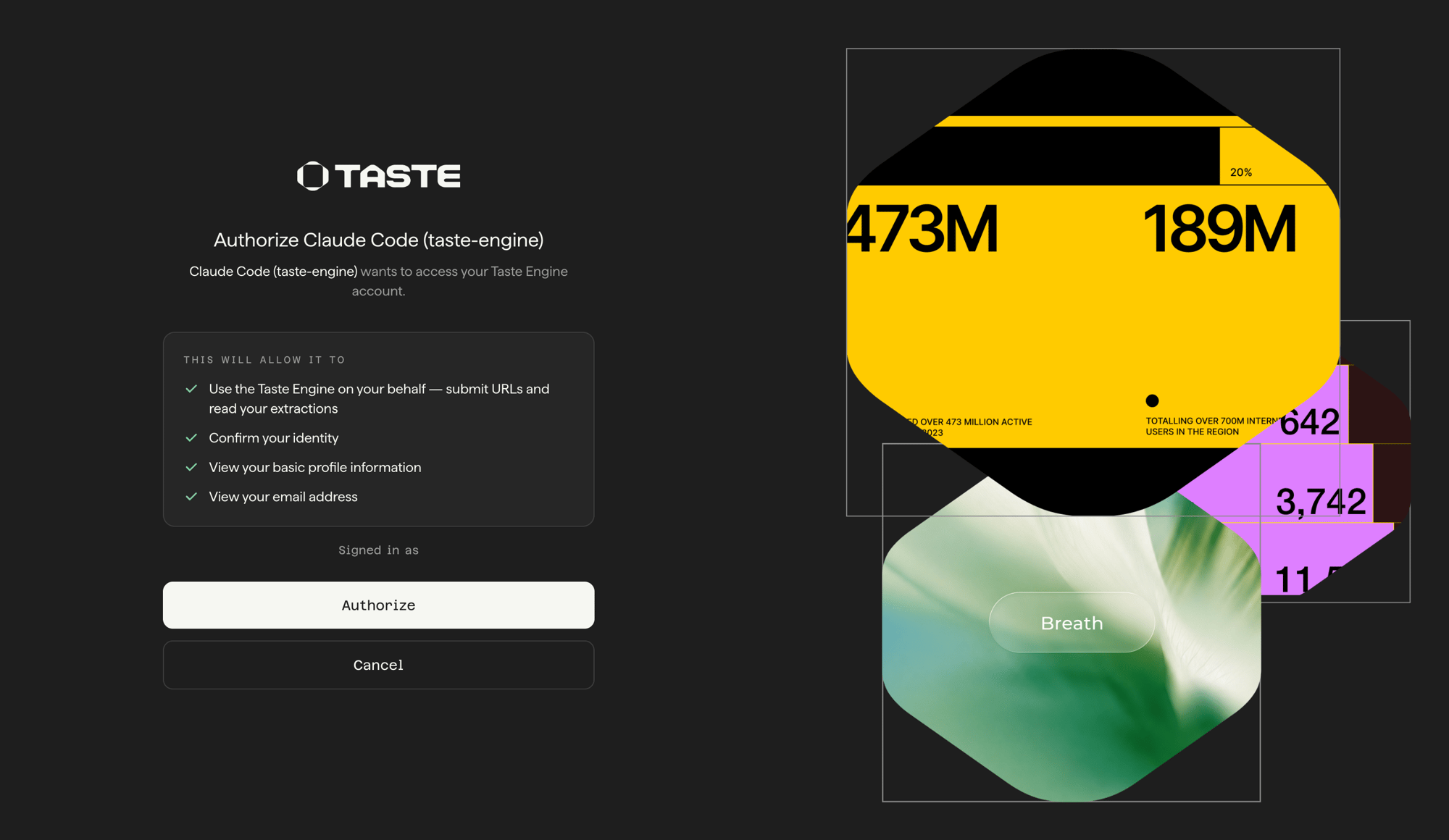
When you authorize, you grant the client access to use the engine on your behalf:
Any client that supports MCP OAuth connects by URL alone. Add a streamable HTTP server with no auth headers, then complete sign-in in the browser when prompted:
```json theme={null}
{
"mcpServers": {
"taste-engine": {
"type": "http",
"url": "https://mcp.tastelabs.com/mcp"
}
}
}
```
When you authorize, you grant the client access to use the engine on your behalf:
 ## Connect with an API key
Use an API key for headless or CI environments, or any client that doesn't support OAuth. Send your `taste_` API key as a **Bearer token**:
```
Authorization: Bearer YOUR_API_KEY
```
This is the same key the HTTP API uses. The gateway forwards it to the API as the `X-API-Key` header. An invalid key surfaces as a `401`. Create and manage keys in the [Engine dashboard](https://engine.tastelabs.com/app/api-keys); see [Authentication](/concepts/authentication) for the full model.
Treat the key like any other secret. Prefer reading it from an environment variable over hard-coding it in a config file you might commit.
Pick your client. In every case you swap `YOUR_API_KEY` for a real key from the dashboard.
Add the server with the Claude Code CLI:
```bash theme={null}
claude mcp add --transport http taste-engine \
https://mcp.tastelabs.com/mcp \
--header "Authorization: Bearer YOUR_API_KEY"
```
Run `/mcp` inside Claude Code to confirm the connection and list the tools. Manage the server with `claude mcp list`, `claude mcp get taste-engine`, and `claude mcp remove taste-engine`.
Export your key, then add the server:
```bash theme={null}
export TASTE_ENGINE_API_KEY=YOUR_API_KEY
codex mcp add taste-engine \
--url https://mcp.tastelabs.com/mcp \
--bearer-token-env-var TASTE_ENGINE_API_KEY
```
One-click install: this opens Cursor and adds the server.
After Cursor opens, replace `YOUR_API_KEY` with a real key in **Settings** → **MCP** (the server is added with a placeholder).
Any MCP-aware client accepts a streamable HTTP server entry. Add this to your `.mcp.json` (or your client's MCP config):
```json theme={null}
{
"mcpServers": {
"taste-engine": {
"type": "http",
"url": "https://mcp.tastelabs.com/mcp",
"headers": {
"Authorization": "Bearer YOUR_API_KEY"
}
}
}
}
```
## Available tools
Four tools mirror the [submission lifecycle](/concepts/submissions):
| Tool | What it does |
| --------------------------------------------------------- | --------------------------------------------------------------------------------------------------------------------------------------------------------- |
| `extract_brand(url, force=false)` | Start an extraction for a website URL. Returns a `submission_id` immediately. Set `force=true` to bypass the cache and re-extract. |
| `poll_brand_extraction(submission_id)` | Check live status and progress. Lightweight, built for polling. |
| `get_brand_extraction_result(submission_id, sections?)` | Read the brand system and artifacts once the submission is `completed`. Pass `sections` to return only part of the brand system. |
| `list_brand_extractions(status?, search?, limit, offset)` | Browse the caller's past submissions, most recent first. Filter by `status` or `search` (a URL substring); paginate with `limit` (1 to 100) and `offset`. |
`poll_brand_extraction` reports a top-level `status` that advances through `accepted`, `queued`, `crawling`, and `extracting` before reaching `completed` or `failed`. Call `get_brand_extraction_result` only once `status` is `completed`.
### Ask for fewer sections
A full brand system is often 10,000 to 30,000 tokens, and it isn't evenly distributed: `assets` is commonly around 40% of it and `layout` around 20%. Every one of those tokens lands in your agent's context.
`get_brand_extraction_result` takes an optional `sections` list so the agent pulls only what it will read:
```
get_brand_extraction_result(submission_id, sections=["colors", "typography"])
```
Accepted values are the top-level sections of the brand system: `profile`, `layout`, `colors`, `typography`, `surfaces`, `elevation`, `interactions`, `actions`, `navigation`, `data_display`, `structure`, `icons`, `assets`, and `sections`.
`result.artifacts` is never filtered out, so a narrow call still returns the screenshot, HTML, and CSS links. Omit `sections` when the agent genuinely needs the whole document, as it does when rebuilding a site faithfully.
What you save is context, not credits. `get_brand_extraction_result` never spends a credit, whether you read one section or all of them.
### Search tools
Two more tools search the curated brand corpus. Unlike extraction, they run **synchronously**: the call returns the results, with nothing to poll.
| Tool | What it does |
| ------------------------------------------------ | --------------------------------------------------------------------------------------------------------------------------------------------------------------------------------------------------------------------------------------------------------------------------------------------------------------------------------------------------------------------------------------------------------------------------------------------------------------------------------------------------------------------------------------------------------------------------------- |
| `search_brands(query, depth="fast", top_k=6)` | Find brands by a natural-language description of an aesthetic. A query can lean on a single trait (a style, an industry, a page type, or facets like colors, typography, and components) to hunt one specific kind of inspiration, or mix them into the description of a look: "dark brutalist developer tools", "vintage-feeling site for a clothing brand", "brutalist studio site with a marquee ticker", "moody, grainy portfolio with a weird custom cursor". `depth="fast"` returns in seconds; `depth="deep"` consumes more credits and trades latency for result quality. |
| `search_similar_brands(submission_id, top_k=18)` | Find brands that look like one of your completed extractions, for when you have a brand rather than a description: a competitor set, or "which brands look like ours". Consumes credits. `top_k` is 1 to 30. |
Both return the same result cards: `url`, `brand_name`, `identity_paragraph`, `tags`, `palette`, `typography`, and `screenshot_url`. A card points at a brand in the corpus, it is not an extraction, so to work with a result the agent extracts it with `extract_brand(url)`. A failed search refunds its credit. See [Brand search](/concepts/brand-search) for the full model.
### Brand adherence tools
Four tools mirror the [brand-adherence flow](/concepts/brand-adherence): judge how well a page follows a reference site's brand. Like extraction, verification is asynchronous.
| Tool | What it does |
| --------------------------------------------------- | ----------------------------------------------------------------------------------------------------------------------------------------------------------------------------------------------------------------------- |
| `verify_brand_adherence(reference_url, source_url)` | Start an adherence job: judge how well `source_url` (a rebuild, a generated page, a redesign) follows `reference_url`'s brand. Returns an `adherence_job_id` immediately. |
| `poll_brand_adherence(adherence_job_id)` | Check live status and progress. Lightweight, built for polling. |
| `get_brand_adherence_result(adherence_job_id)` | Read the verdict: a 0-1 `score` and worst-first suggestions on how to fix the gaps. Feed them back to the agent that built the page, or use the score as an eval. Re-read it any time with the same `adherence_job_id`. |
| `list_brand_adherence_jobs(status?, limit, offset)` | Browse the caller's past jobs, most recent first. Filter by `status`; paginate with `limit` (1 to 100) and `offset`. |
Both sides are extracted automatically, so `extract_brand` is not a prerequisite. `poll_brand_adherence` reports a top-level `status` that advances through `accepted`, `extracting`, and `judging` before reaching `completed` or `failed`.
## How an agent uses it
### Extract a brand you know
Extraction is asynchronous, so the agent follows the submit, poll, read loop:
`extract_brand("https://stripe.com")` returns a `submission_id` right away.
`poll_brand_extraction(submission_id)` until `status` is `completed`. Stop on `failed` and read the `error` field for the reason.
`get_brand_extraction_result(submission_id)` returns `result.design_system` (the brand system) and `result.artifacts` (the captured screenshot, HTML, and CSS).
From there the agent can generate code from the colors, typography, and components, fetch the screenshot to match the layout, or diff two extractions to compare brands. To re-read a result you already paid for, call `get_brand_extraction_result` with its `submission_id` (find it via `list_brand_extractions`) instead of submitting the URL again.
Every `extract_brand` call consumes credits, even when the result is served from cache. A cache hit is faster, not free. Re-reading an existing result with `get_brand_extraction_result` does not spend again. See [Caching and freshness](/concepts/submissions#caching-and-freshness).
### Find a brand you can only describe
When the agent doesn't have a URL, it searches first and extracts second:
`search_brands("dark brutalist developer tools")` returns ranked cards right away, each with a `url` and a `screenshot_url` the agent can fetch to see the brand.
`extract_brand(card.url)`, then poll and read as above. Searching surfaces the brand; extracting is what produces a brand system you can build from.
`search_similar_brands(submission_id)` runs the same loop from the other end: start from a brand you already extracted and get its visual neighbours.
[Find inspiration](/use-cases/find-inspiration) walks this workflow in full, including how to write queries and when to use filters. The [`brand-search` skill](/ai-tools/skills#find-references-with-brand-search) teaches the agent the same discipline: which search tool to call, how to write the query from the prompt's own words, and how to inspect every result before choosing.
### Verify what the agent built
Brand adherence closes the loop: after generating or rebuilding a page, the agent scores its own output against the reference brand and applies the returned fixes.
`verify_brand_adherence("https://stripe.com", "https://staging.example.com")` returns an `adherence_job_id` right away.
`poll_brand_adherence(adherence_job_id)` until `status` is `completed`. Stop on `failed` and read the `error` field for the reason.
`get_brand_adherence_result(adherence_job_id)` returns the `score`, the `recommendations`, and the `fixes`, both worst-first. The agent applies them, redeploys, and re-verifies.
[Verification in an agent loop](/use-cases/agent-loop) walks this pattern in full: what to feed back, in what order, and when to stop.
## Next steps
Pair the server with the agent skills that find design references, ship on-brand pages, and verify them against the reference.
Understand every section the tools return.
## Connect with an API key
Use an API key for headless or CI environments, or any client that doesn't support OAuth. Send your `taste_` API key as a **Bearer token**:
```
Authorization: Bearer YOUR_API_KEY
```
This is the same key the HTTP API uses. The gateway forwards it to the API as the `X-API-Key` header. An invalid key surfaces as a `401`. Create and manage keys in the [Engine dashboard](https://engine.tastelabs.com/app/api-keys); see [Authentication](/concepts/authentication) for the full model.
Treat the key like any other secret. Prefer reading it from an environment variable over hard-coding it in a config file you might commit.
Pick your client. In every case you swap `YOUR_API_KEY` for a real key from the dashboard.
Add the server with the Claude Code CLI:
```bash theme={null}
claude mcp add --transport http taste-engine \
https://mcp.tastelabs.com/mcp \
--header "Authorization: Bearer YOUR_API_KEY"
```
Run `/mcp` inside Claude Code to confirm the connection and list the tools. Manage the server with `claude mcp list`, `claude mcp get taste-engine`, and `claude mcp remove taste-engine`.
Export your key, then add the server:
```bash theme={null}
export TASTE_ENGINE_API_KEY=YOUR_API_KEY
codex mcp add taste-engine \
--url https://mcp.tastelabs.com/mcp \
--bearer-token-env-var TASTE_ENGINE_API_KEY
```
One-click install: this opens Cursor and adds the server.
After Cursor opens, replace `YOUR_API_KEY` with a real key in **Settings** → **MCP** (the server is added with a placeholder).
Any MCP-aware client accepts a streamable HTTP server entry. Add this to your `.mcp.json` (or your client's MCP config):
```json theme={null}
{
"mcpServers": {
"taste-engine": {
"type": "http",
"url": "https://mcp.tastelabs.com/mcp",
"headers": {
"Authorization": "Bearer YOUR_API_KEY"
}
}
}
}
```
## Available tools
Four tools mirror the [submission lifecycle](/concepts/submissions):
| Tool | What it does |
| --------------------------------------------------------- | --------------------------------------------------------------------------------------------------------------------------------------------------------- |
| `extract_brand(url, force=false)` | Start an extraction for a website URL. Returns a `submission_id` immediately. Set `force=true` to bypass the cache and re-extract. |
| `poll_brand_extraction(submission_id)` | Check live status and progress. Lightweight, built for polling. |
| `get_brand_extraction_result(submission_id, sections?)` | Read the brand system and artifacts once the submission is `completed`. Pass `sections` to return only part of the brand system. |
| `list_brand_extractions(status?, search?, limit, offset)` | Browse the caller's past submissions, most recent first. Filter by `status` or `search` (a URL substring); paginate with `limit` (1 to 100) and `offset`. |
`poll_brand_extraction` reports a top-level `status` that advances through `accepted`, `queued`, `crawling`, and `extracting` before reaching `completed` or `failed`. Call `get_brand_extraction_result` only once `status` is `completed`.
### Ask for fewer sections
A full brand system is often 10,000 to 30,000 tokens, and it isn't evenly distributed: `assets` is commonly around 40% of it and `layout` around 20%. Every one of those tokens lands in your agent's context.
`get_brand_extraction_result` takes an optional `sections` list so the agent pulls only what it will read:
```
get_brand_extraction_result(submission_id, sections=["colors", "typography"])
```
Accepted values are the top-level sections of the brand system: `profile`, `layout`, `colors`, `typography`, `surfaces`, `elevation`, `interactions`, `actions`, `navigation`, `data_display`, `structure`, `icons`, `assets`, and `sections`.
`result.artifacts` is never filtered out, so a narrow call still returns the screenshot, HTML, and CSS links. Omit `sections` when the agent genuinely needs the whole document, as it does when rebuilding a site faithfully.
What you save is context, not credits. `get_brand_extraction_result` never spends a credit, whether you read one section or all of them.
### Search tools
Two more tools search the curated brand corpus. Unlike extraction, they run **synchronously**: the call returns the results, with nothing to poll.
| Tool | What it does |
| ------------------------------------------------ | --------------------------------------------------------------------------------------------------------------------------------------------------------------------------------------------------------------------------------------------------------------------------------------------------------------------------------------------------------------------------------------------------------------------------------------------------------------------------------------------------------------------------------------------------------------------------------- |
| `search_brands(query, depth="fast", top_k=6)` | Find brands by a natural-language description of an aesthetic. A query can lean on a single trait (a style, an industry, a page type, or facets like colors, typography, and components) to hunt one specific kind of inspiration, or mix them into the description of a look: "dark brutalist developer tools", "vintage-feeling site for a clothing brand", "brutalist studio site with a marquee ticker", "moody, grainy portfolio with a weird custom cursor". `depth="fast"` returns in seconds; `depth="deep"` consumes more credits and trades latency for result quality. |
| `search_similar_brands(submission_id, top_k=18)` | Find brands that look like one of your completed extractions, for when you have a brand rather than a description: a competitor set, or "which brands look like ours". Consumes credits. `top_k` is 1 to 30. |
Both return the same result cards: `url`, `brand_name`, `identity_paragraph`, `tags`, `palette`, `typography`, and `screenshot_url`. A card points at a brand in the corpus, it is not an extraction, so to work with a result the agent extracts it with `extract_brand(url)`. A failed search refunds its credit. See [Brand search](/concepts/brand-search) for the full model.
### Brand adherence tools
Four tools mirror the [brand-adherence flow](/concepts/brand-adherence): judge how well a page follows a reference site's brand. Like extraction, verification is asynchronous.
| Tool | What it does |
| --------------------------------------------------- | ----------------------------------------------------------------------------------------------------------------------------------------------------------------------------------------------------------------------- |
| `verify_brand_adherence(reference_url, source_url)` | Start an adherence job: judge how well `source_url` (a rebuild, a generated page, a redesign) follows `reference_url`'s brand. Returns an `adherence_job_id` immediately. |
| `poll_brand_adherence(adherence_job_id)` | Check live status and progress. Lightweight, built for polling. |
| `get_brand_adherence_result(adherence_job_id)` | Read the verdict: a 0-1 `score` and worst-first suggestions on how to fix the gaps. Feed them back to the agent that built the page, or use the score as an eval. Re-read it any time with the same `adherence_job_id`. |
| `list_brand_adherence_jobs(status?, limit, offset)` | Browse the caller's past jobs, most recent first. Filter by `status`; paginate with `limit` (1 to 100) and `offset`. |
Both sides are extracted automatically, so `extract_brand` is not a prerequisite. `poll_brand_adherence` reports a top-level `status` that advances through `accepted`, `extracting`, and `judging` before reaching `completed` or `failed`.
## How an agent uses it
### Extract a brand you know
Extraction is asynchronous, so the agent follows the submit, poll, read loop:
`extract_brand("https://stripe.com")` returns a `submission_id` right away.
`poll_brand_extraction(submission_id)` until `status` is `completed`. Stop on `failed` and read the `error` field for the reason.
`get_brand_extraction_result(submission_id)` returns `result.design_system` (the brand system) and `result.artifacts` (the captured screenshot, HTML, and CSS).
From there the agent can generate code from the colors, typography, and components, fetch the screenshot to match the layout, or diff two extractions to compare brands. To re-read a result you already paid for, call `get_brand_extraction_result` with its `submission_id` (find it via `list_brand_extractions`) instead of submitting the URL again.
Every `extract_brand` call consumes credits, even when the result is served from cache. A cache hit is faster, not free. Re-reading an existing result with `get_brand_extraction_result` does not spend again. See [Caching and freshness](/concepts/submissions#caching-and-freshness).
### Find a brand you can only describe
When the agent doesn't have a URL, it searches first and extracts second:
`search_brands("dark brutalist developer tools")` returns ranked cards right away, each with a `url` and a `screenshot_url` the agent can fetch to see the brand.
`extract_brand(card.url)`, then poll and read as above. Searching surfaces the brand; extracting is what produces a brand system you can build from.
`search_similar_brands(submission_id)` runs the same loop from the other end: start from a brand you already extracted and get its visual neighbours.
[Find inspiration](/use-cases/find-inspiration) walks this workflow in full, including how to write queries and when to use filters. The [`brand-search` skill](/ai-tools/skills#find-references-with-brand-search) teaches the agent the same discipline: which search tool to call, how to write the query from the prompt's own words, and how to inspect every result before choosing.
### Verify what the agent built
Brand adherence closes the loop: after generating or rebuilding a page, the agent scores its own output against the reference brand and applies the returned fixes.
`verify_brand_adherence("https://stripe.com", "https://staging.example.com")` returns an `adherence_job_id` right away.
`poll_brand_adherence(adherence_job_id)` until `status` is `completed`. Stop on `failed` and read the `error` field for the reason.
`get_brand_adherence_result(adherence_job_id)` returns the `score`, the `recommendations`, and the `fixes`, both worst-first. The agent applies them, redeploys, and re-verifies.
[Verification in an agent loop](/use-cases/agent-loop) walks this pattern in full: what to feed back, in what order, and when to stop.
## Next steps
Pair the server with the agent skills that find design references, ship on-brand pages, and verify them against the reference.
Understand every section the tools return.